
 Word to PDF
 PDF to Word
 PNG to PDF
 JPG to Word
 Text to PDF
 Extract Text From PDF
 QR Code Scanner
 Compress Image
 Text Repeater



Published On: Jun 04, 2026
How to convert image to word document?
Have a scanned contract, a photographed receipt or a text-filled screenshot that you want to edit like a normal document? You’re not alone. This is a problem that millions of people deal with every day. The good news is that it’s no longer a complicated, tech-heavy process to convert an image to a Word document. Today, there are plenty of tools that make the process quick, accurate, and even free.
In this guide we’re going to walk you through everything you need to know about image to Word conversion, from what it means and why it matters, to the best methods you can use right now.
Why Do People Convert Images to Word Documents?
Before getting into the how, it's worth understanding why this comes up so often.
A raw image file JPG, PNG, BMP, whatever is great for viewing, but it's not great for working with. You can't add a header to a JPG. You can't put page numbers on a PNG. You can't email a BMP to a client and call it a professional document.
A Word document is different. It's structured, editable, and universally accepted in professional and academic settings. When you embed your image inside a .docx file, you suddenly have something you can build around add a title, write a caption, combine it with other images, format the page, and share it as a proper document.
That's the whole point of image to Word conversion. Take the image, put it in Word, make it usable.
The Easiest Ways to Convert Photo to Word Document
1. Use a Free Solutions Pedia Online Image to Word Converter
If you want the fastest possible route, an online image to Word converter is your best bet. Open a browser, upload your image, download a Word file. That's genuinely it.
Here's how it works:
1. First of all, open the Image to Word Converter website. The link is available here: Solutions Pedia
2. Upload your image JPG, PNG, BMP, TIFF all work fine. Click Choose File or Press Link icon to paste the image link and fetch it online free.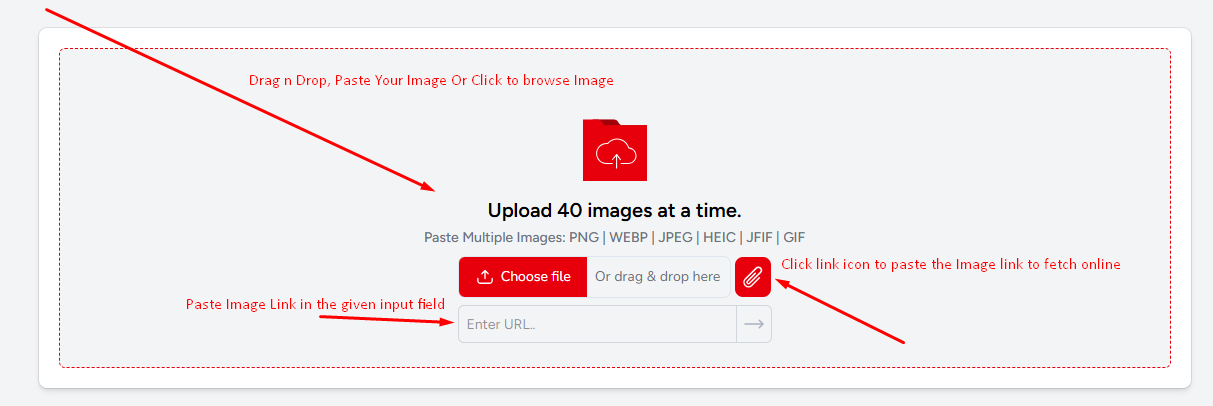
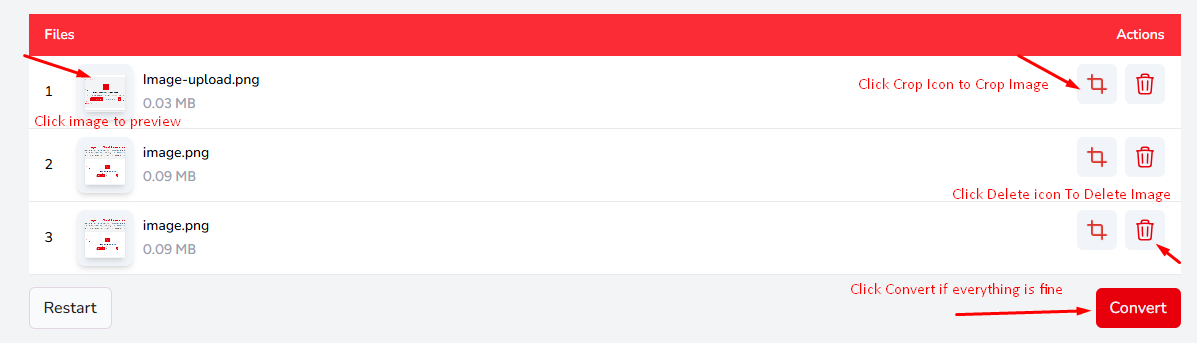
3. Now, if you want to crop your image, click on the Crop icon, or if you want to remove the unnecessary image, click on the delete icon. If everything looks fine, then press the Convert Button to process the task.
4. After the conversion process is finished, you can also download the image file 1 by 1. If you want to merge all the images into 1 Word file, press the Download All Button. That's a simple, user-friendly process that may not take a lot of time.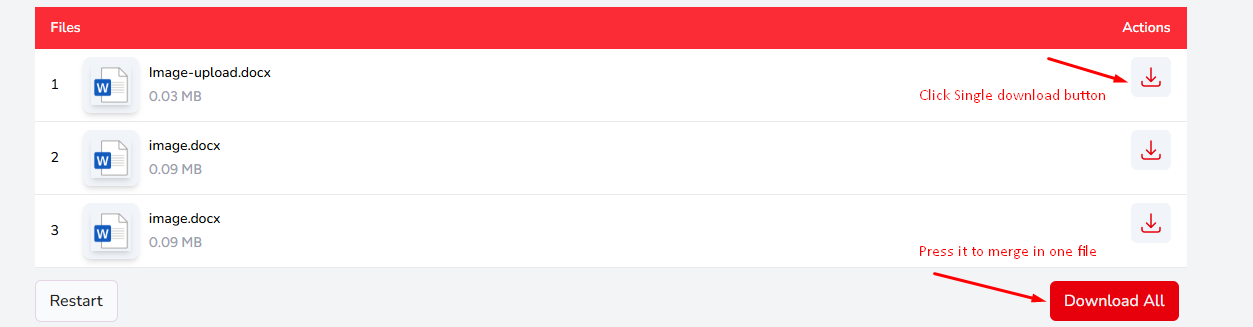
2. Do It Directly in Microsoft Word
If you already have Word on your computer, you don't need any third-party tool at all. Word lets you insert images natively, and saving the result as a .docx takes two seconds.
Process to do:
- Open Microsoft Word and start a blank document
- Click Insert in the top menu
- Select Pictures, then This Device
- Find your image file and click Insert
- The image drops into your document
- Hit File → Save As, pick .docx, and you're done
That's a complete image to Word conversion without leaving Microsoft Office. You can resize the image, move it around, add text above or below it, whatever you need, before saving.
3. Google Docs Free and Works on Any Device
Don't have Microsoft Word? No problem. Google Docs handles this just as well, and it's completely free.
- Go to docs.google.com and open a new document
- Click Insert → Image → Upload from computer
- Choose your image file
- Once it's in the document, go to File → Download → Microsoft Word (.docx)
You'll get a .docx file downloaded to your device that opens perfectly in Word. Clean, simple, free.
This works on any device with a browser, laptop, tablet, or phone. And since it's Google, there's nothing to install.
A Few Things That Make the Conversion Come Out Better
Image quality matters. A blurry or low-resolution image will look just as blurry inside Word. If you have options, always use the highest resolution version of the image you've got.
PNG vs JPG for screenshots and graphics, PNG looks sharper. For regular photos, JPG is fine. Either format works with every method listed here.
File size and large images in size may slow down your Word document. After you insert an image, Word gives you the option to compress it. You'll find it under Picture Format → Compress Pictures. Use it if the file gets too heavy.
Saving format always save as .docx, not the older .doc. The .docx format works with every modern version of Word and opens without issues in Google Docs, LibreOffice, and everything else.
Which Method is best for you to use?
It really depends on your condition:
- Need it done fast, right now? → Online image to Word converter
- Do You Already have Word open? → Insert the image directly
- If Word is Not installed? → You can download google docs as .docx file
- Do this regularly with lots of files? → Desktop converter app
- Working from a physical document? → Scan straight into Word
None of these methods is complicated. The whole process, whichever route you take, should take you a couple of minutes at most.
Conclusion:
One of those chores that seems more difficult than it actually is converting picture to word document. It takes roughly a minute after you are aware of your alternatives. For instant conversion, go to an online converter. if you already use Word, use its built-in insert function, or for a free, portable option, try Google Docs.